
The following guide will support with initiating integration with foundU. Please contact your Customer Success Manager for set up prior to initiating any integrations.
Step 1: Log into your foundU account and copy the web address URL ready for Step 4
Step 2: In a separate tab in the same browser, login to your Prosper account
Step 3: Navigate to Integrations in the menu and select foundU
Step 4: Add new integration
Step 5: Enter your unique foundU URL saved from Step 1, and Initiate integration
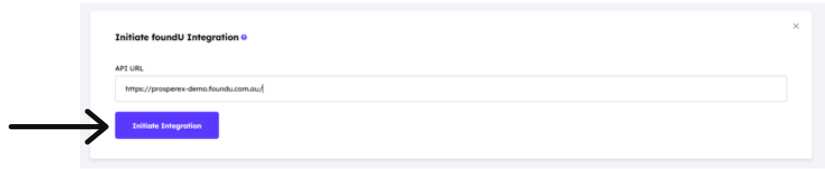
Step 6: You will be redirected to foundU to accept permission and Continue
Step 7: Set your sync options for Teams and Locations, and Save. Don't worry if your employees aren't yet allocated to Teams in foundU, you can continue with the sync and allocate employees at a convenient time. Any changes made pull into Prosper when the integration takes effect, every hour.
Step 8: Enable Sync
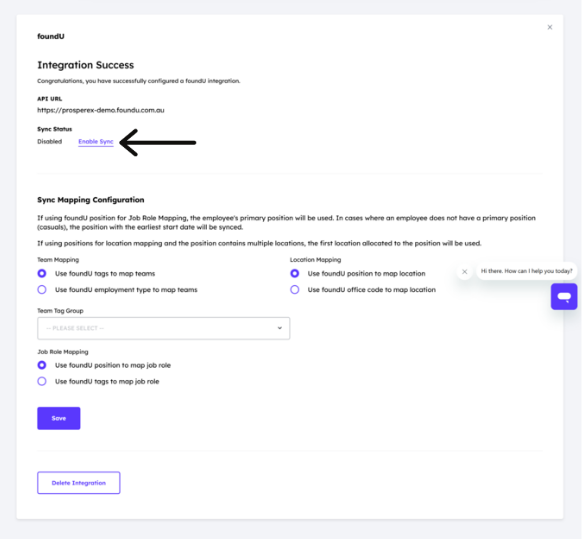
Step 9: Trigger Full Sync. Confirmation email will arrive when the integration is complete
We value your collaboration. If you have any questions or require further assistance, please don’t hesitate to reach out to your Customer Success Manager or support@prosperex.com.au
Comments
0 comments
Please sign in to leave a comment.